Send a quote
Make the quote
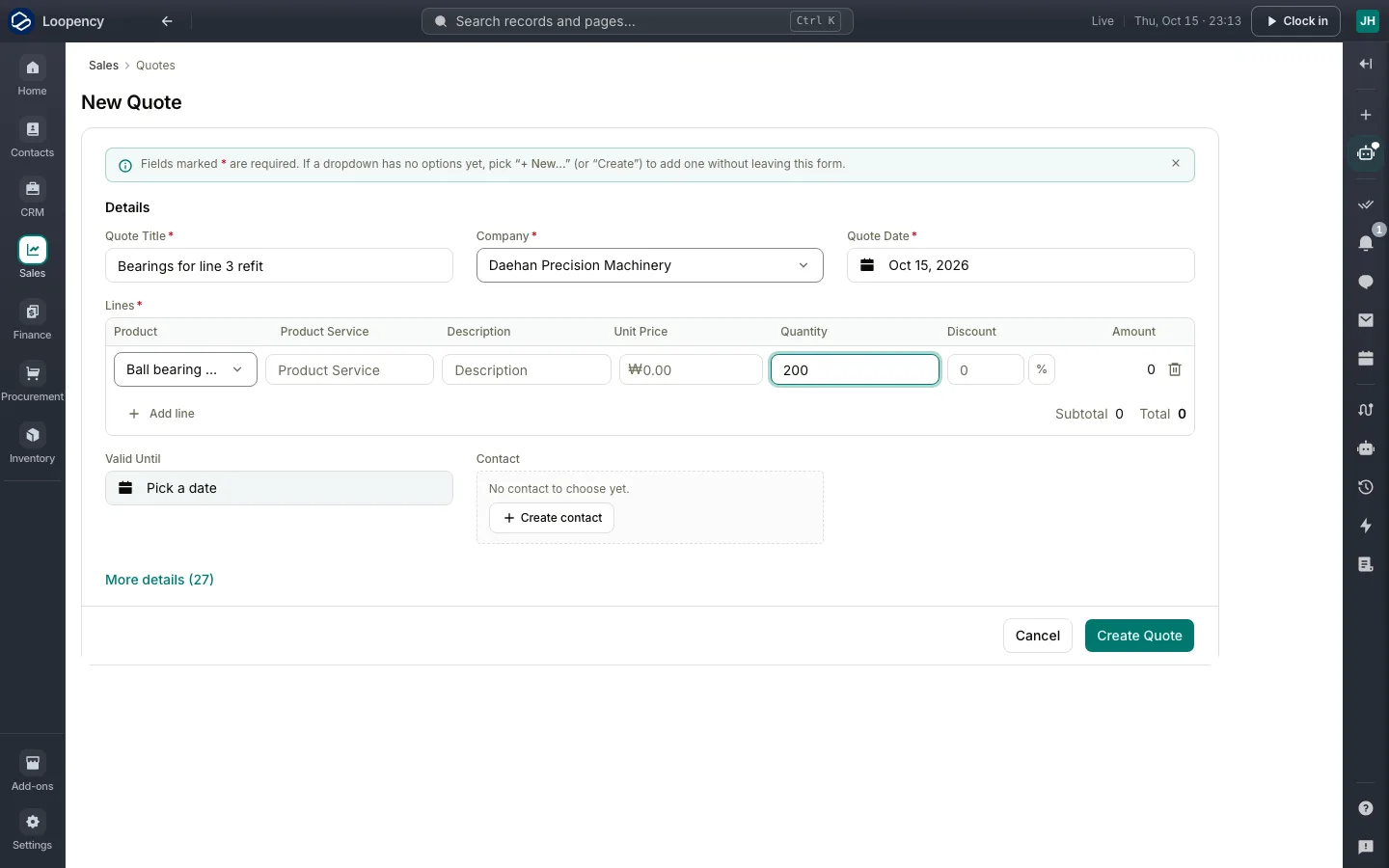
- Open Sales from the rail, then Quotes, and choose New.
- Enter a Quote Title and pick the customer's Company.
- Pick the Quote Date.
- Under Lines, choose Add line, pick the Product, and enter the Unit Price and Quantity. The total adds itself up.
- Choose Create Quote.
The quote is saved as a draft.
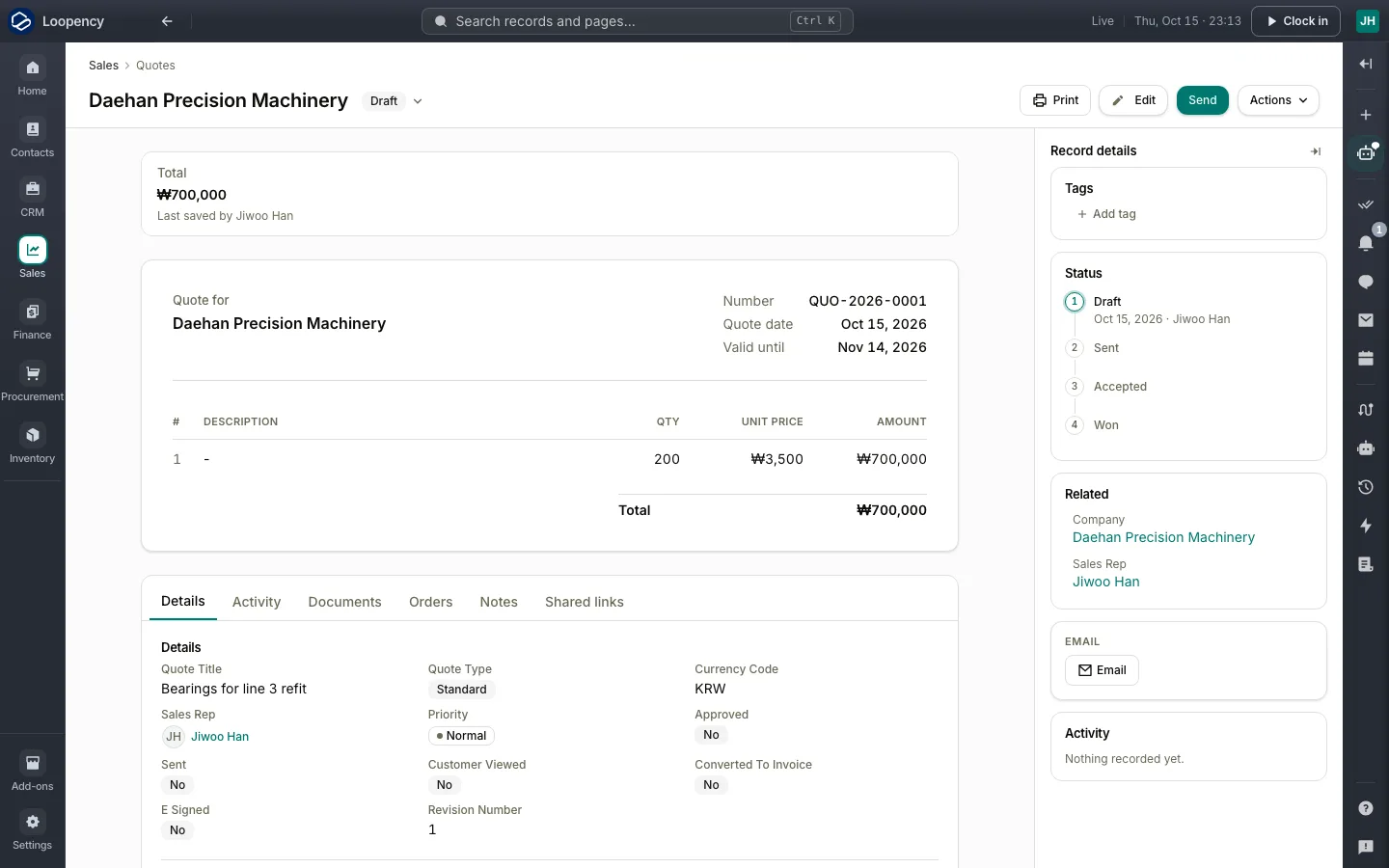
Check it and send it
The bar at the top of the quote shows its steps. The first is a check: someone looks at the price and margin before the quote goes out.
- Choose Complete Sales checks price and margin. (Your check may have another name: the bar shows the steps of your business.)
- Choose Send, then Send again to confirm.
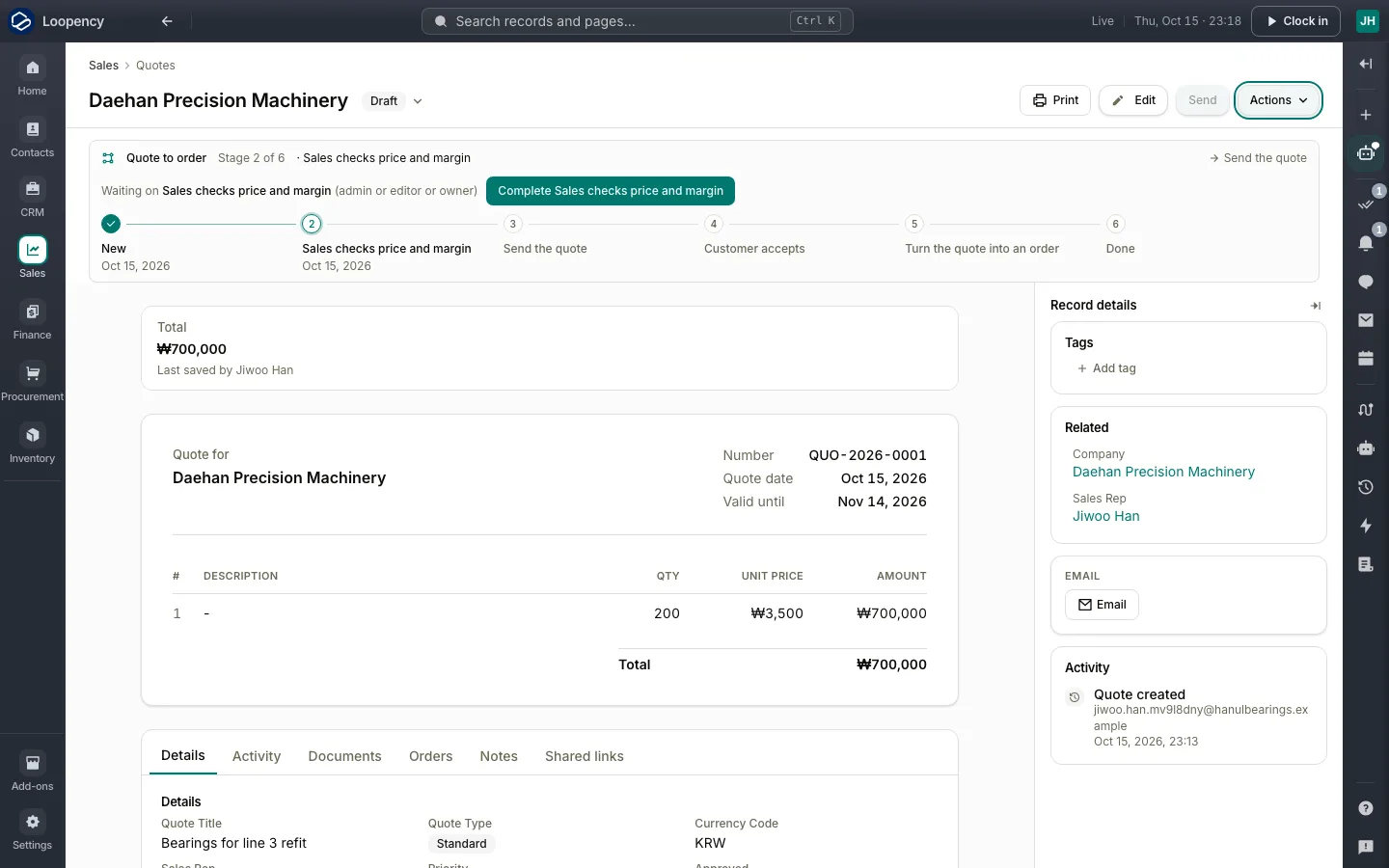
Send marks the quote as sent. To get it to your customer, choose Print to download it, or Share link to email them a link they can open without an account.

When the customer says yes
- Click the status next to the quote's name (Sent).
- Under Move to, choose Accept Quote, then confirm.

If you sent a link, the customer can accept it themselves. Accepting holds the stock for this customer.
Next: Make the order.